Add White Background to Photo Online Free
PhotosStyle Team
5/28/2026
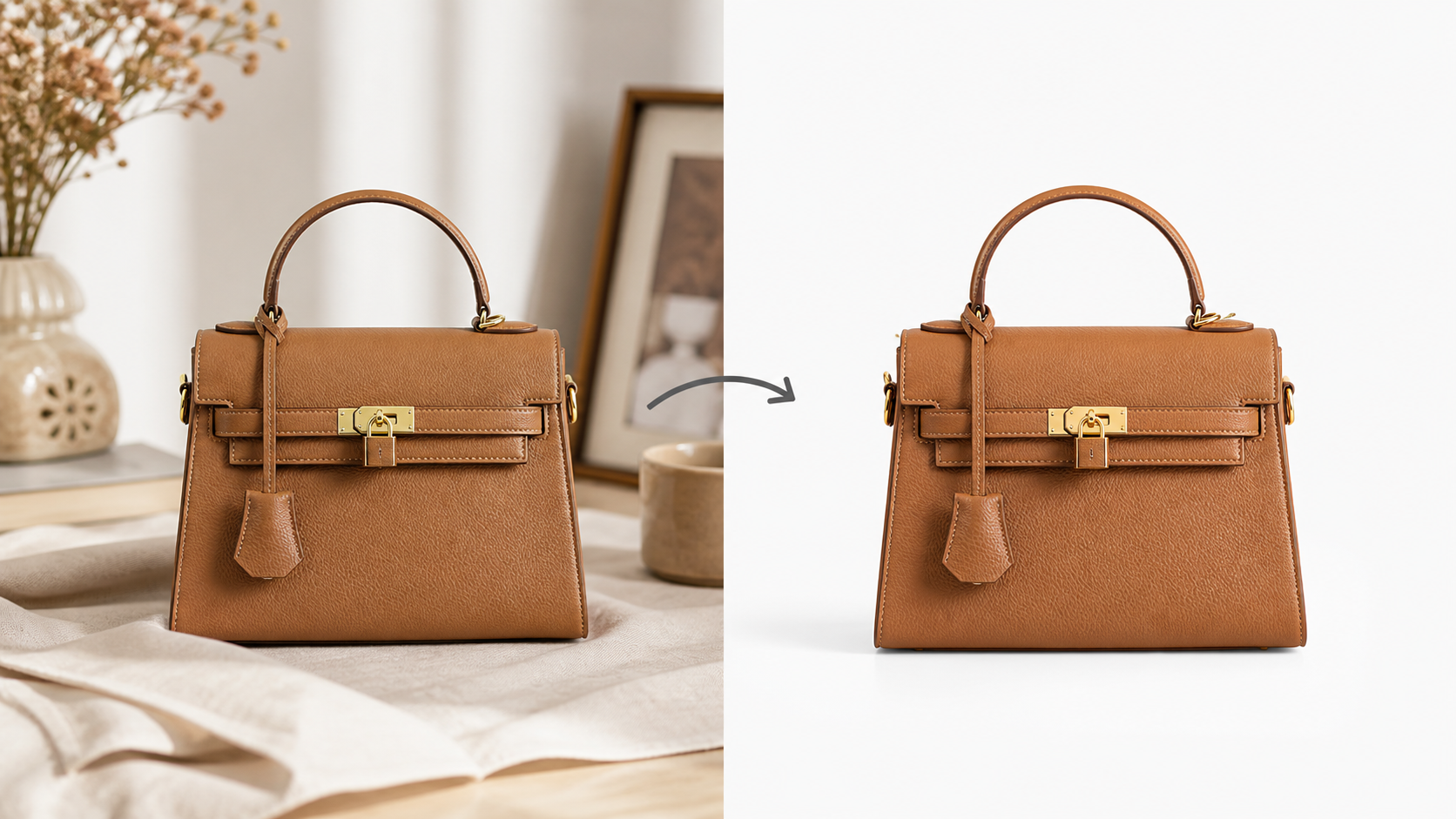
Add a White Background to Your Photo Online
A clean white background makes a photo easier to understand in seconds. It removes visual noise, gives products a more professional look, and makes portraits feel more polished across profiles, resumes, and team pages.
With PhotosStyle's White Background Maker, you can upload one photo, choose a background style, keep or remove a natural shadow, and download the result as PNG or JPG. You do not need Photoshop, manual masking, or a studio setup.
When a White Background Works Best
White backgrounds are useful when the subject should be the main focus. They work especially well for:
- Product photos for online shops, catalogs, and ads
- Profile portraits for LinkedIn, resumes, and company pages
- Clean social media posts where the subject needs to stand out
- ID-style photos, portfolio images, and simple marketing assets
Pure white is the safest choice when you need a crisp, marketplace-ready look. Light gray can feel a little softer for portraits and lifestyle products. Warm off-white is useful when pure white feels too clinical and you want a gentler studio feel.
How to Add a White Background with PhotosStyle
Open the White Background Maker and upload a clear photo. The tool supports products, portraits, pets, and everyday objects. For the best result, start with an image where the subject is not heavily blurred or hidden behind another object.
Choose the background color. The default option is pure white, but you can also use light gray, warm off-white, or a custom color if the image needs a slightly different studio look.
Pick the shadow mode. If the subject is a product, keeping a subtle contact shadow often makes the result look more natural. If you need a flat graphic-style image, choose the flat background option to remove background shadows.
Select the use case preset. General photo works for most images. Marketplace product is better for e-commerce listings. Profile portrait keeps the composition clean for people photos. Social media gives the image a bright, shareable look.
Generate the image, review the result, then download it. After generation, the result panel lets you choose PNG or JPG from the download menu, so you can match the file format to your workflow.
PNG or JPG: Which Format Should You Download?
Choose PNG when you want maximum clarity, crisp edges, or a file that will be used in design layouts. PNG is often the better choice for products with fine details, logos, packaging, or text.
Choose JPG when you want a smaller file for websites, listings, email, or quick sharing. Since a white background is already opaque, JPG works well for many finished product and portrait images.
How to Get Cleaner Edges
AI background replacement works best when the subject has clear contrast from the original background. If your source image has hair, fur, glass, jewelry, or a white product on a white surface, the edge can be more challenging.
Use these quick fixes before uploading:
- Avoid very low-resolution screenshots
- Crop out unnecessary clutter around the subject
- Use a photo where the whole subject is visible
- Avoid heavy filters before background replacement
- Keep lighting even across the subject
If the first result is close but not perfect, use the result-side edit entry to refine it. You can ask for cleaner subject edges, a pure white background, or a different shadow style without starting from scratch.
Common Use Cases
For online sellers, a white background creates consistency across a shop grid. When every product is photographed against the same clean background, buyers can compare shape, color, and size more easily.
For profile pictures, a white background removes distractions and keeps attention on the face. It is especially useful for LinkedIn, resumes, company directories, speaker bios, and personal websites.
For social posts, white backgrounds make images easier to crop into square, vertical, or banner formats. The subject remains clear even when the image appears in a small feed preview.
FAQ
Can I add a white background to a photo for free?
Yes. You can use PhotosStyle's White Background Maker online without editing skills.
Does the tool only make pure white backgrounds?
No. You can choose pure white, light gray, warm off-white, or a custom background color.
Should I keep the shadow?
Keep a subtle shadow for products that need to feel grounded. Use a flat background for graphic assets, ID-style photos, or images that need a very clean look.
Can I edit the result after generation?
Yes. After generating the image, use the edit result entry to request refinements such as cleaner edges, pure white background, or shadow changes.
Ready to make a clean white version of your photo? Try PhotosStyle White Background Maker.